PDQ Deploy - Silent Software Deployment


PDQ Deploy 2.2
Software and patch deployment tool
Description
PDQ Deploy allows sysadmins the ability to silently deploy applications or patches to their Windows systems

Release Date

Memory Requirements
2 GB

OS Requirements
Windows XP, Vista, Win7, Win8, Server 2003, Server 2008, Server 2012

Dependencies
.NET 4.0 (Console only)

Category
Software and patch deployment tools

Publisher
Admin Arsenal Corporation

Deploy Software Quickly

A PDQ Deploy Package which deploys Microsoft Office 2013Use PDQ Deploy to install applications and patches to all the computers in your company. 

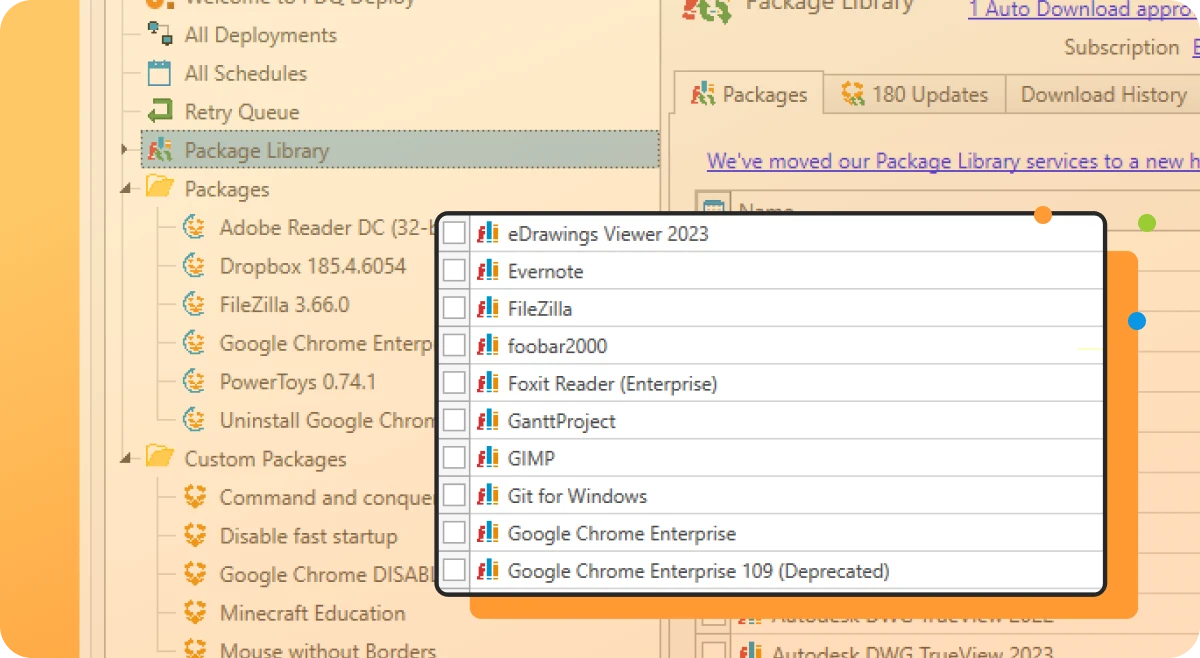
Subscribers to the Package Library have access to pre-made packages ready to deploy.

Don't have a subscription? No problem, simply point a PDQ Deploy Package to the install files (MSI, EXE) and you're ready to deploy.

Get PDQ Deploy

Install MSI's to Multiple Computers

Need to install an MSI? Just create a new PDQ Package and point it to the MSI. If the installation has more than a single MSI file, be sure to check the "Include Entire Directory" checkbox. 

Install EXE's to Multiple Computers

Need to install an EXE? All you need to do is verify that the application can be installed silently. (By default MSI's have this ability, but EXE's need to be explicity told to run silently). Not every EXE supports this feature, but most do. 

The challenge will be to determine the correct method to run it silently. The silent parameter (sometimes called a switch) can be /s or /S, /q or /Q, /quiet, /qn, and a host of other options. Sometimes the installations are case senstive, so be sure to use exactly what the vendor states is the correct switch.

Ready-to-deploy Installs in the Package Library

We created the Package Library so that our users wouldn't have to spend time with every Java or Flash update that comes down the pike. When you subscribe to our Package Library you can get common apps that are already in PDQ Packages, and are ready for deploying to all your computers. See the full list of ready-to-go installs.

Customize Your Installs

With PDQ Deploy you can install just about any application or patch just by pointing a PDQ Deploy package to an EXE or MSI. You can also make changes to the packages that you downloaded from the Package Library. 

Get PDQ Deploy

What if my Installation has more files than just an MSI or EXE?

Many installations require more than a single install file.

To be sure that these files are used during the installation, be sure to check the "Include Entire Directory" checkbox when you point the PDQ Package to the MSI or EXE.

include entire directory to add all install files

PDQ copies all install files to target computer and then initiates the installation "locally". Checking the "Include Entire Directory" checkbox ensures that all the necessary files get copied down. This includes any subdirectories.

Software Deploy Example Video

Shane & Lex show how to setup PDQ Deploy, download Adobe Flash from within PDQ, and then deploy it to multiple computers. 

We recommend watching in HD (full screen).

What if my Installation requires more steps than just running an install file?

Not a problem.

Multi-step installs are supported in the Pro Mode version of PDQ Deploy.

For instance if you need to kill a web browser before installing Adobe Flash, you can put in a kill command as the first step in your Package. 

Installs with multiple steps is a pro mode feature
Another good example would be uninstalling previous versions of software, like the JRE. You could have a step for each uninstall of previous updates. 

Another possibility is running a script following an install step. 

Steps can be running other installs or running commands. 

Get PDQ Deploy

What's the difference between pro mode and a subscription?

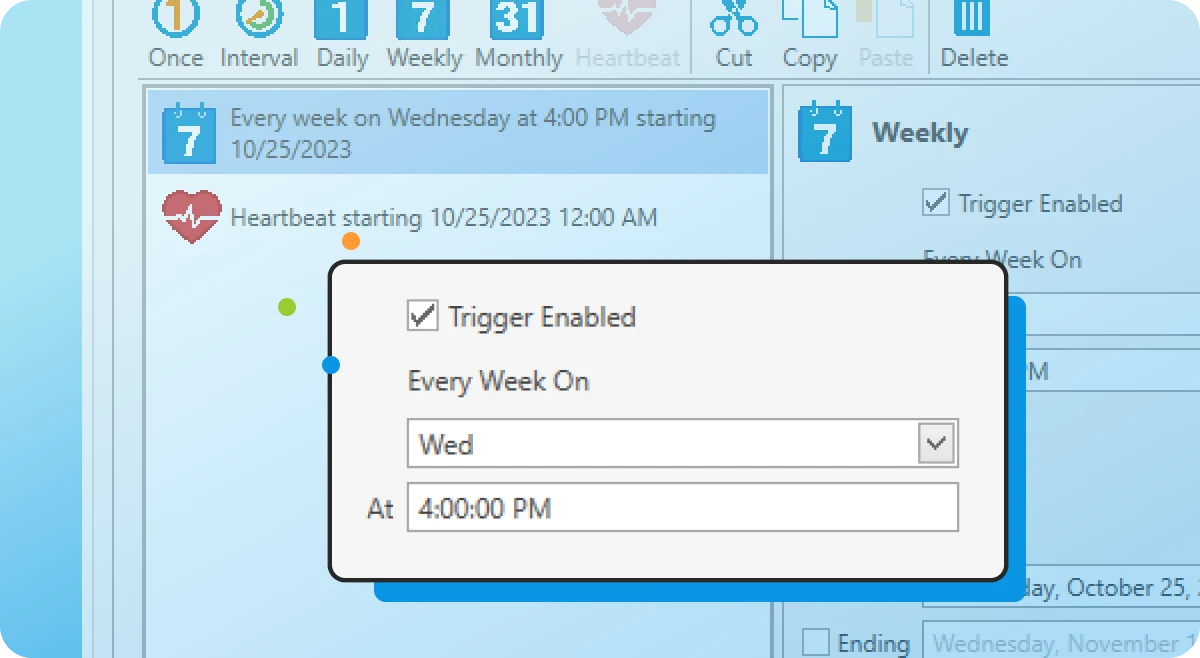
Pro mode unlocks the advanced features of PDQ Deploy, like scheduled installs and multi-step packages, etc. Pro mode requires a one-time license fee per user (a user is the administrator who uses PDQ products). 

A subscription to the Package Library is not included in a pro mode license. It is a separate charge. A subscription is not required to use PDQ Deploy, only to access the pre-made packages created by us. (It saves our subscribers time by not needing to create packages for common apps like Java, Reader, Flash, Chrome, etc.) A subscription is a recurring charge (monthly or annually), whereas a pro mode license is a one-time charge.

Are upgrades to future releases of PDQ included in pro mode?

Yes, upgrades to current versions of PDQ Deploy and Inventory are available for one year from your purchase date. After that, a maintenance fee can be paid to get upgrades for another year. 

NOTE: Subscriptions to the Package library include upgrade protection for PDQ Deploy. 

How do I get a trial of pro mode?

Request a trial for PDQ Deploy here, or PDQ Inventory here. There is nothing new to install. Simply copy/paste the key that is emailed to you into each product (File > Product License). 

Does a pro mode trial include a trial to the Package Library?

A trial to pro mode does not automatically provide a trial to the Package Library. We do include a few common packages (like Flash) that you can download without a subscription. 

If the package you want to deploy requires a subscription, you can always email us and ask us to enable the package library during your trial. 

How do I tell PDQ Deploy which computers to install to?

choose computers to deploy toThere are a bunch of ways that you can choose which computers that you push installs to.

You can choose your target computers from:

  • Active Directory
  • Text lists
  • Manually type each hostname
  • PDQ Inventory
  • Spiceworks
Get PDQ Deploy

How can I tell if my computers need the application or patch?

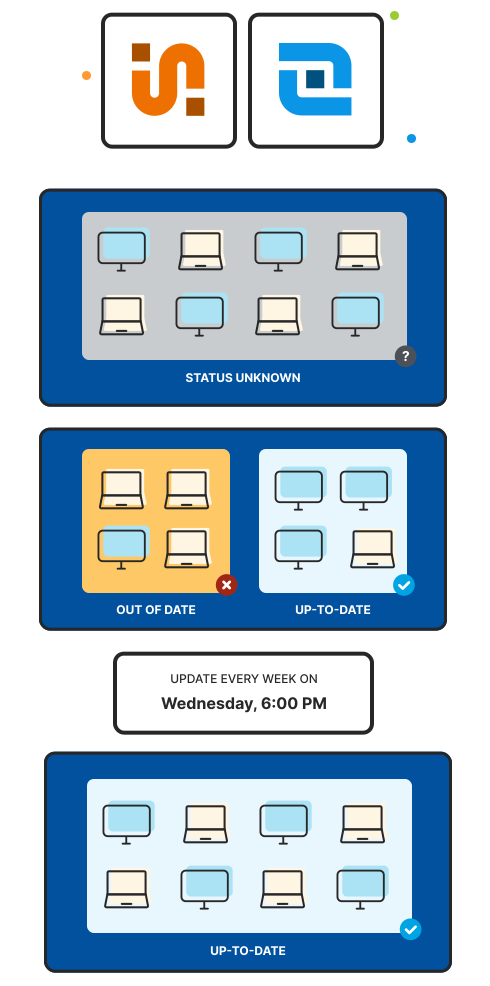
We have a companion product called PDQ Inventory which scans your computers for installed apps and other configuration settings, and stores these scans in a database.

PDQ Inventory allows you to group your computers into collections based on just about any configuration. 

For instance, create a collection of all computers that do not have Adobe Reader X installed. Then in PDQ Deploy, when choosing target computers to deploy Reader, simply select that PDQ Inventory collection and those computers will receive the deployment.

Learn more about PDQ Inventory.